The Easiest Way to Create an SRT File in 2026
April 2026
·
2 min read
An SRT file, or SubRip Subtitle file, is a plain text file that holds subtitles for your video. A video player reads it and overlays the text on top of your footage at exactly the right time.
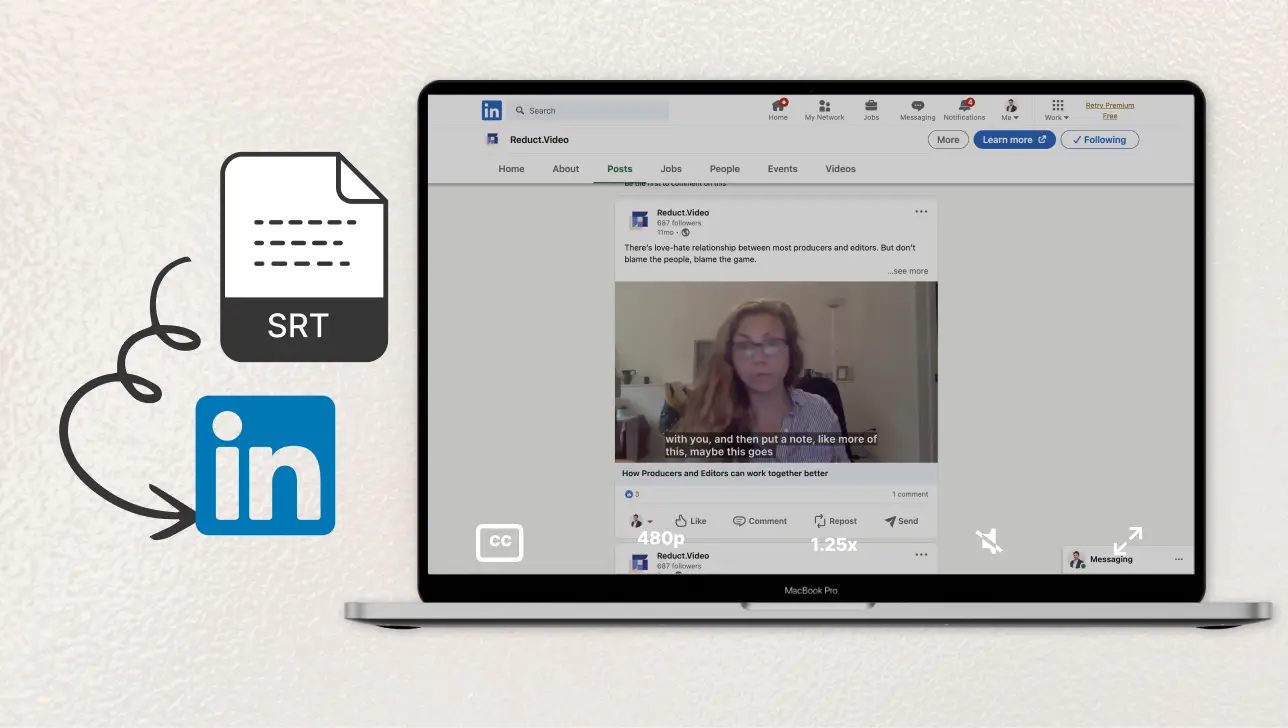
Unlike burned-in captions that are baked into the video, a separate SRT file gives viewers control. They can turn subtitles on or off, style them as they like, and can also be read by screen readers for improved accessibility.
In 2026, there is no reason to create SRT files from scratch. I recommend starting with a tool, then using a text editor for any custom edits you may need.
How to generate subtitles for a video
There are various tools that automatically generate subtitles. Reduct is one of them, and it is built specifically for people who work with a high volume of video.
Here is how to create and export an SRT file in Reduct.
1. Upload your media to Reduct
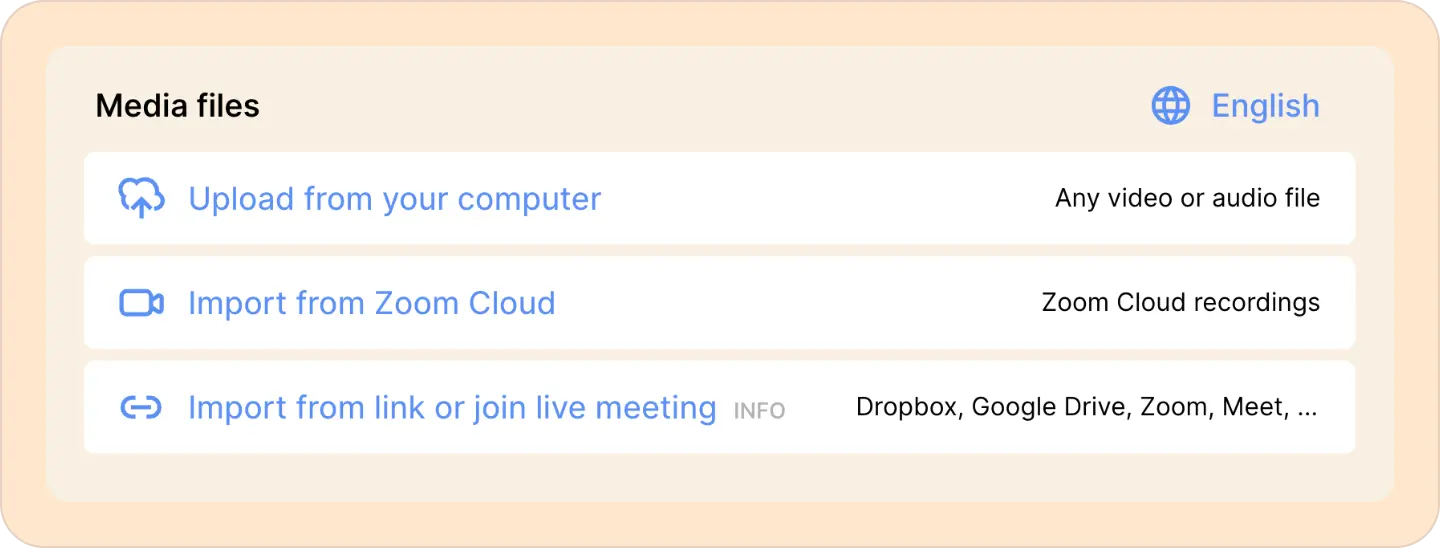
Reduct accepts both audio and video files, in more than 90 languages. Transcription typically takes around 15 minutes, depending on the length of your file. You can also edit the transcript directly inside Reduct before exporting, so what comes out is clean and ready to use.
2. Export your SRT file
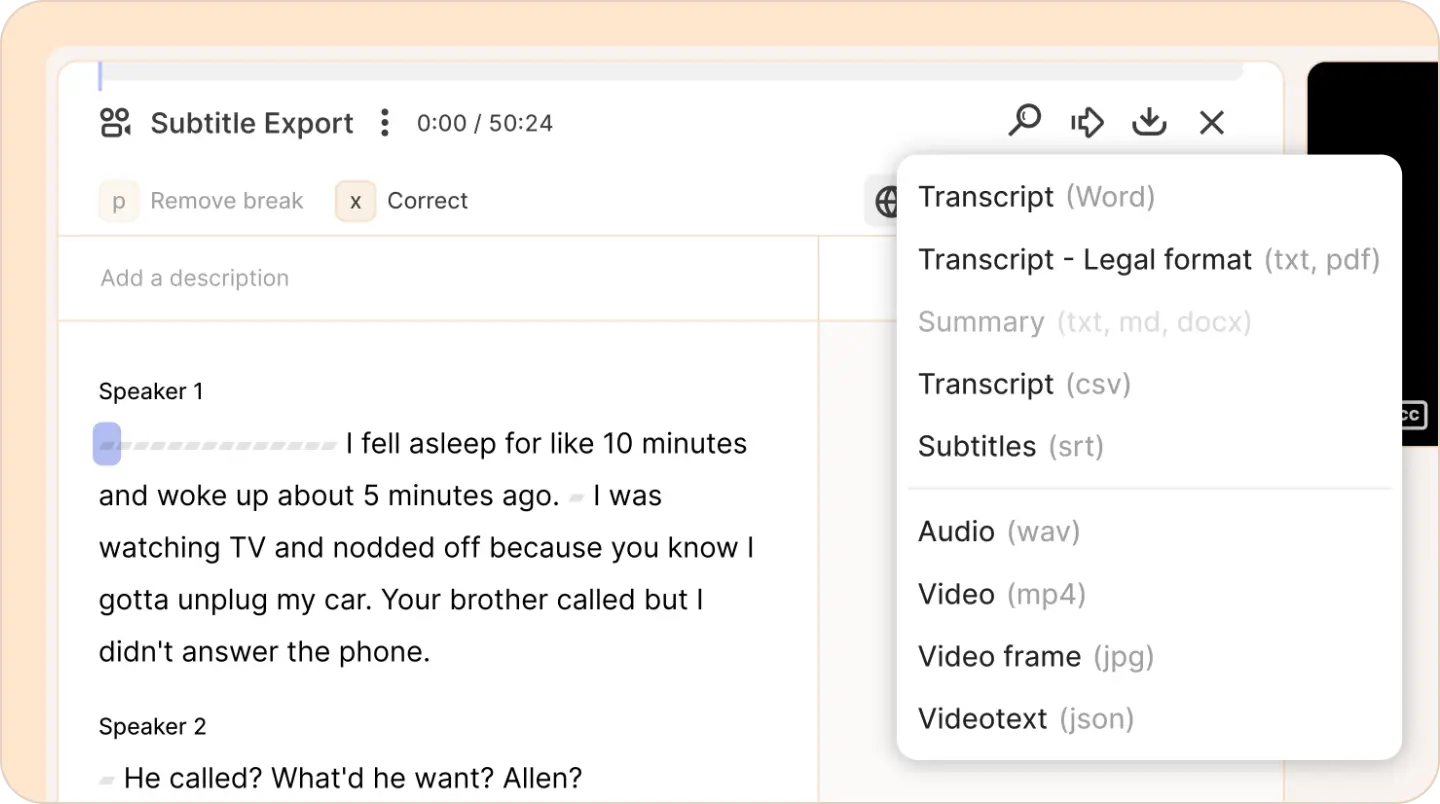
Click the download icon and select Subtitles (srt). Your SRT file is ready to use.
You can also use the translation feature in Reduct to translate the words into other languages and download as many translated subtitles as you want.
If you want to use the subtitles locally, I recommend using VLC Media Player. It lets you load an SRT file alongside any video. Open your video in VLC, go to Subtitle > Add Subtitle File, and select your SRT.

What exactly is an SRT file?
An SRT file is made up of repeating blocks. Each block has two parts:
-
Timestamp: The exact start and end time for when the subtitle should appear on screen.
-
Words or phrases: The text that appears within that timestamp window.
A block looks like this:
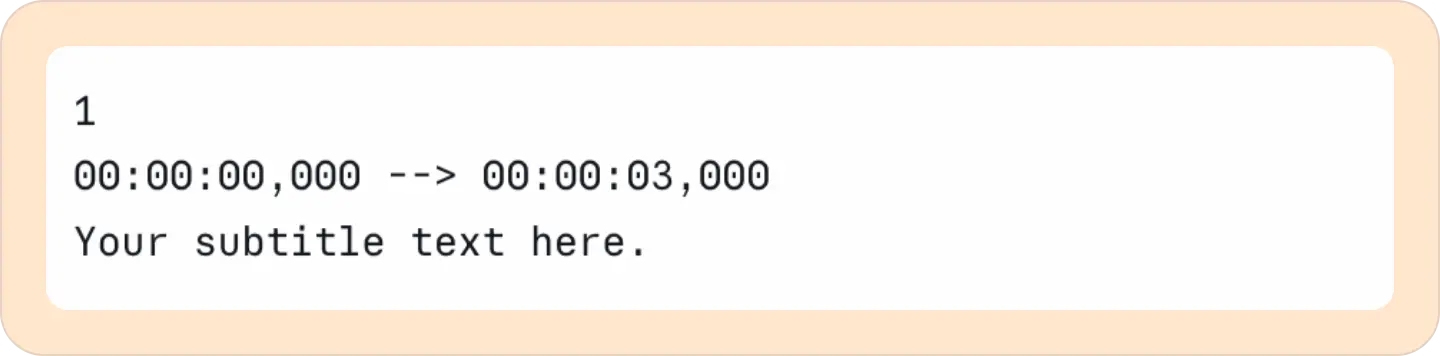
Each block is separated by a blank line. The sequence number at the top indicates the order to display each block.
If you ever need to create or edit one manually, open Notepad on Windows or TextEdit on Mac, follow the format above, and save the file with a .srt extension. Make sure the encoding is set to UTF-8.
What makes a good SRT file?
Not all SRT files are the same. A technically valid file can still be played by a media player. But depending on how the blocks are created, the viewing experience can be bad. Here is what separates a good one from a frustrating one.
- Transcript accuracy: The words need to match what is actually being said. Errors in grammar, spelling, or misheard words break viewer trust, especially for professional or educational content.
- Timing accuracy: If your subtitles are even slightly out of sync, the experience falls apart. Subtitles that appear a second before or after the spoken word are distracting and hard to follow. Good tools timestamp at the word level, and not just the sentence level.
- Natural break points: Our brains struggle with fragmented information. A subtitle that cuts mid-sentence forces the viewer to work harder to understand what they just read. Good subtitles break each block at natural pauses, sentence endings, or clause boundaries, not arbitrarily at a word limit. This is one area where human judgment is better.
Create your SRT file with Reduct
SRT files are time-consuming to create manually, especially for longer videos. Doing it manually for a 10-minute video takes over an hour. In Reduct, it takes 5 minutes. Upload your video, get an accurate transcript, and download your SRT file in minutes.