How to De-Rush Footage Faster with Reduct.Video
June 2026
·
2 min read
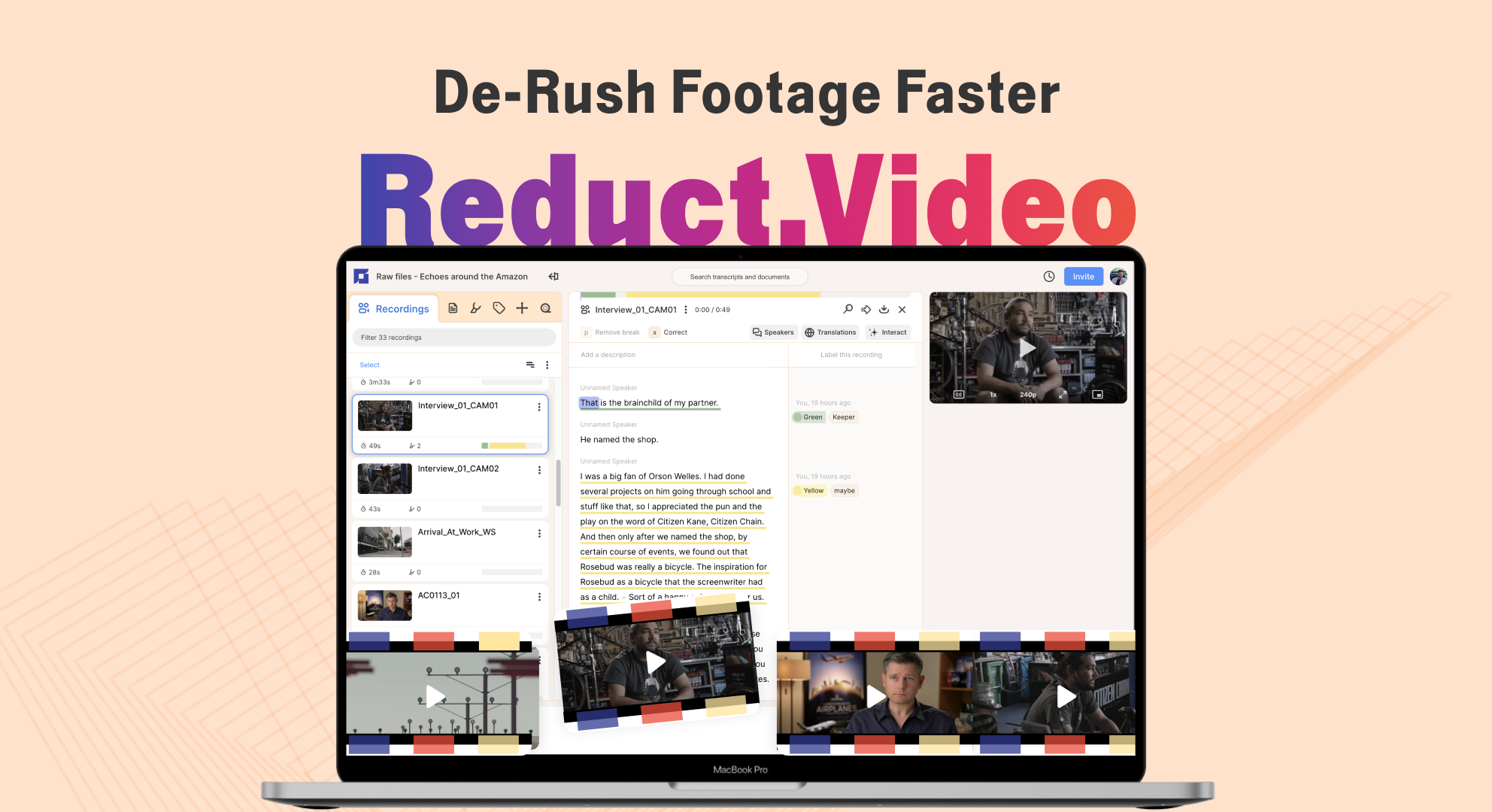
De-rushing is easily the most unglamorous part of post-production. You wrap a shoot, dump 400GB of files onto a hard drive, and then spend two full days staring at a timeline, dropping markers, and typing timecodes into a Google Doc.
Most editors do it this way because it's how it has always been done. But manually scrubbing through a 2-hour corporate interview to find a 10-second soundbite is a massive waste of creative energy.
Here is the fix ↓
By shifting from a timeline-first workflow to a text-based workflow, you can cut your logging time in half. Here is my 5-step process for de-rushing footage using Reduct.
Step 1: Bulk upload your camera rolls
First, drag your raw clips straight into Reduct. It transcribes the audio and matches every single word to an exact timecode frame. Your video becomes a searchable text document.
Reduct handles standard broadcast codecs (like ProRes and H.264) and processes batch uploads simultaneously.
For multi-cam shoots, just upload footage from the camera with the best audio, usually as a proxy for faster upload. Just make sure the proxy's total runtime matches the original exactly.
Step 2: Search your footage like a Google Doc
Instead of guessing where a specific quote lives, type a keyword into the search bar.
If you're editing a documentary about urban planning and need every instance where the subject says "inspiration," Reduct pulls up every single matching phrase instantly.
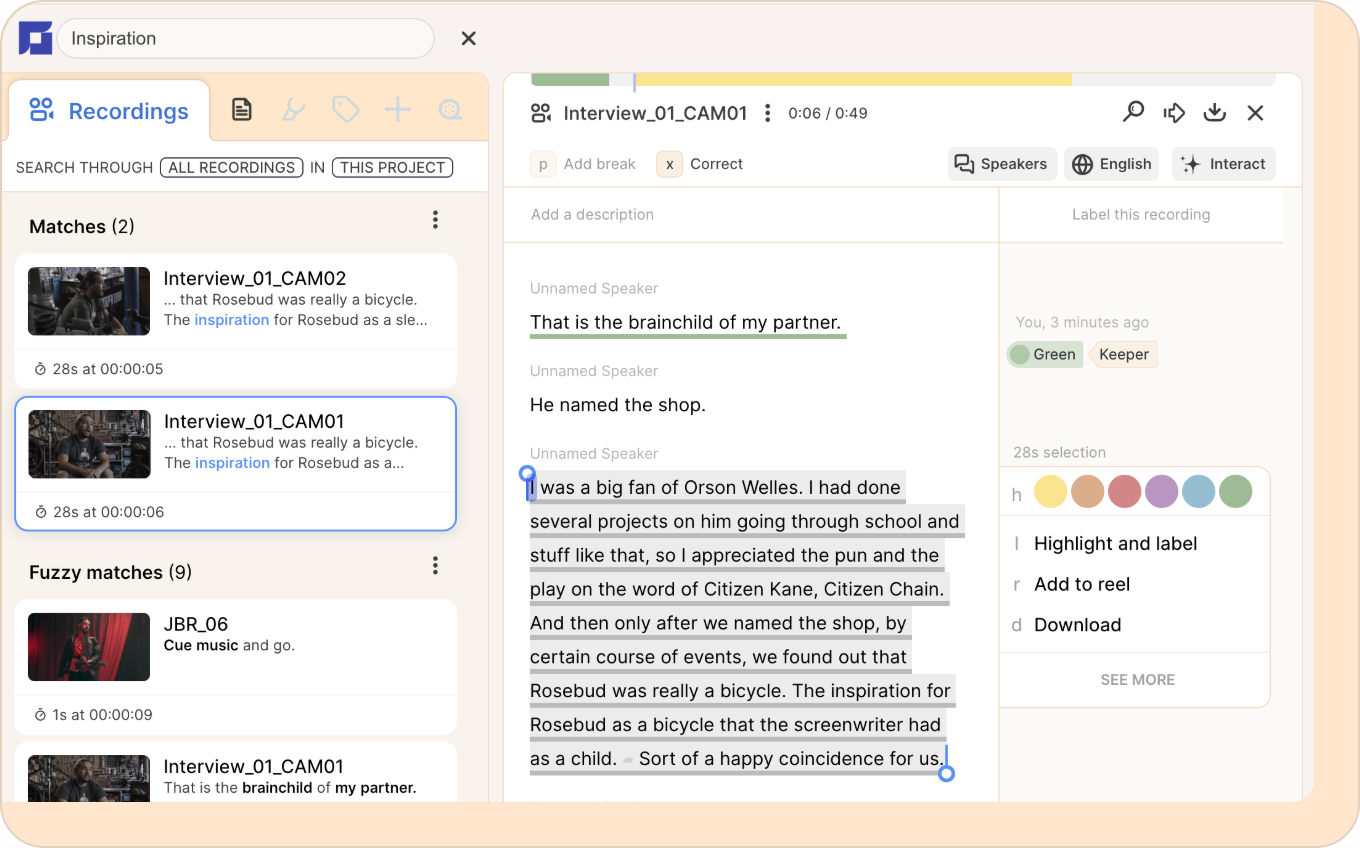
You can click directly on the text to play the video from that exact millisecond.
Step 3: Highlight your selects
If you want to pull a soundbite, just highlight the transcript with your cursor. Reduct automatically sets the in and out points for that video clip based on your text selection.
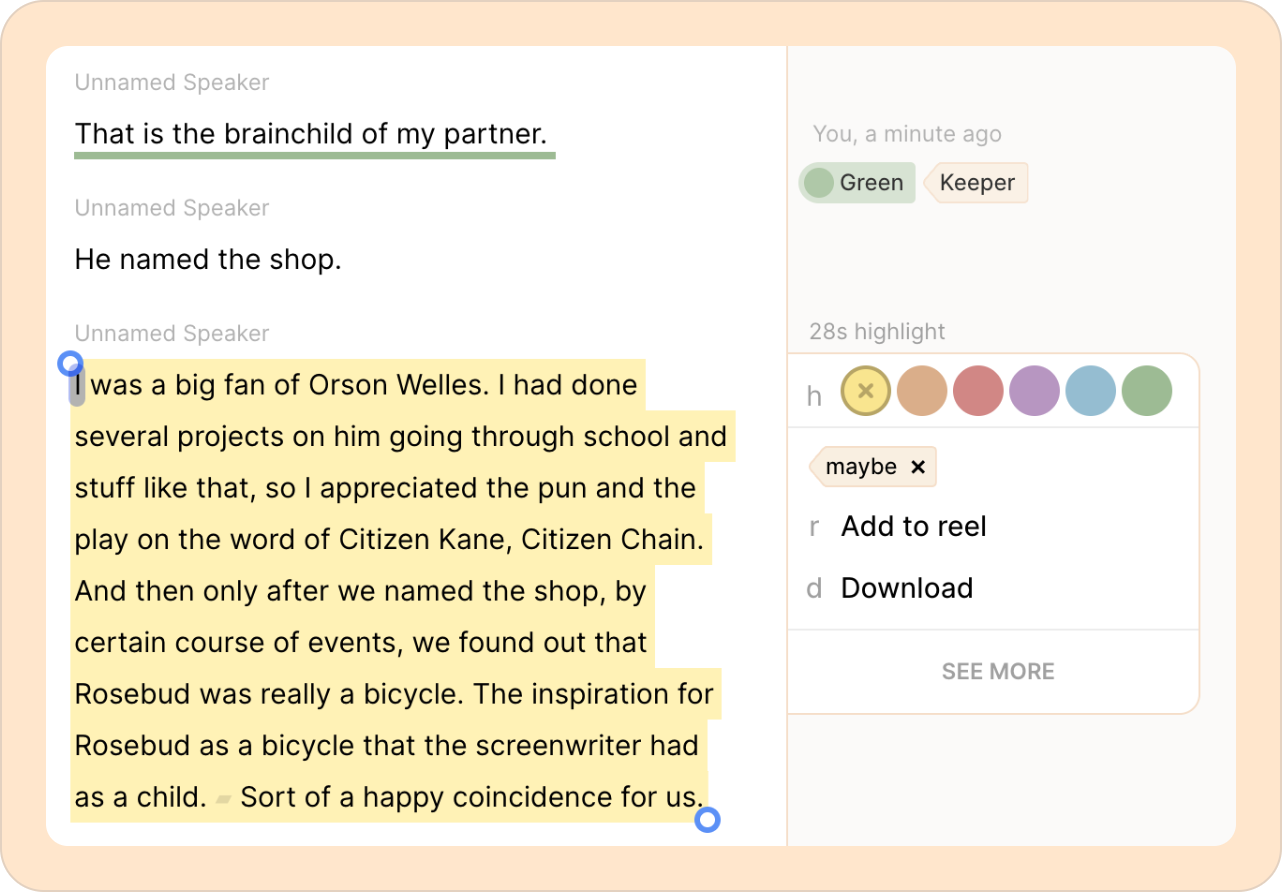
You can also color-code your highlights. You can build a simple system that works for your team: Green for selects you're confident about and Yellow for maybes. When you hand off to a director or producer, they immediately know what's locked and what needs a decision.
Step 4: Share selects instantly
When a producer asks to see the best quotes from Day 1 of the shoot, don't waste time rendering a rough export and uploading it to Frame.io.
Instead, grab a shareable link directly from Reduct.
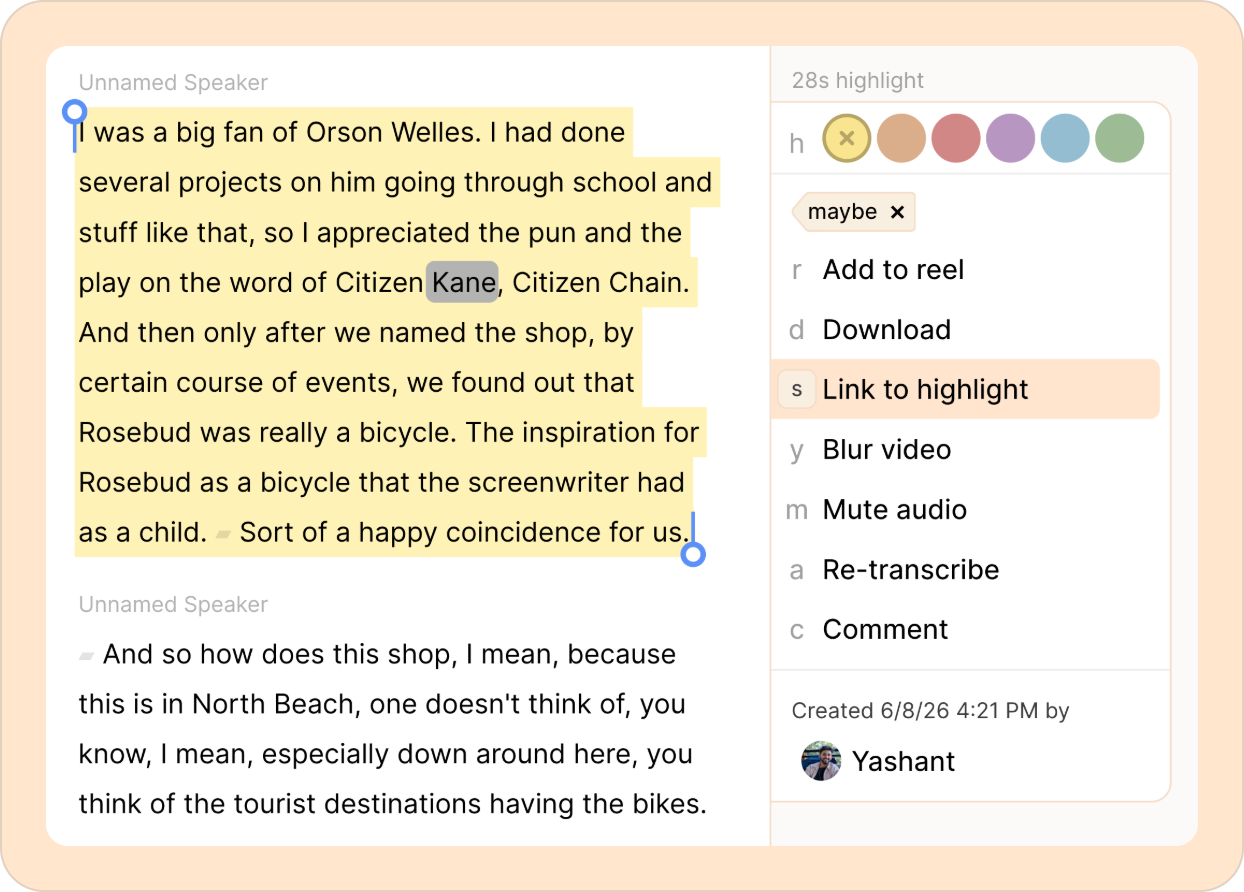
Your director or client can view the clips and read the transcript right inside their web browser. They can even leave comments on a specific part of the transcripts that ties back to the video.
Step 5: Build a paper edit before touching your NLE
You can sequence your highlighted text blocks into a rough narrative structure by dragging and dropping paragraphs inside Reduct. Moving the text automatically rearranges the video clips.
Once your story structure feels tight, export the sequence as an EDL or XML file straight into DaVinci Resolve or Premiere. Your rough cut will populate on your timeline with the correct cuts already made.
Where this actually works
This process changes the game for dialogue-heavy projects:
- Documentary features
- Corporate case studies
- Remote Zoom interviews
- Podcast video cuts
A big separate BUT, if you are cutting a highly visual car commercial, a music video, or B-roll heavy action sequences with zero dialogue, this workflow won't give you much of an advantage. Use it where the script drives the story.
Want a deep dive on this? You can sign up for a free trial, toss in a 10-minute clip from your current project, and see how much faster it feels.