Get Side-by-Side Translated Transcripts of Your Footage
August 2026
·
2 min read
When you process multilingual audio/video discovery, whether it's a jail call in Spanish or body cam footage with two languages, a standard translation may not be enough.
If you get back just the translated text, you instantly lose critical context. You may wonder:
- Where did the witness pause?
- Which exact phrase triggered that reaction?
- Which timestamp corresponds to the moment the speaker lowered their voice?
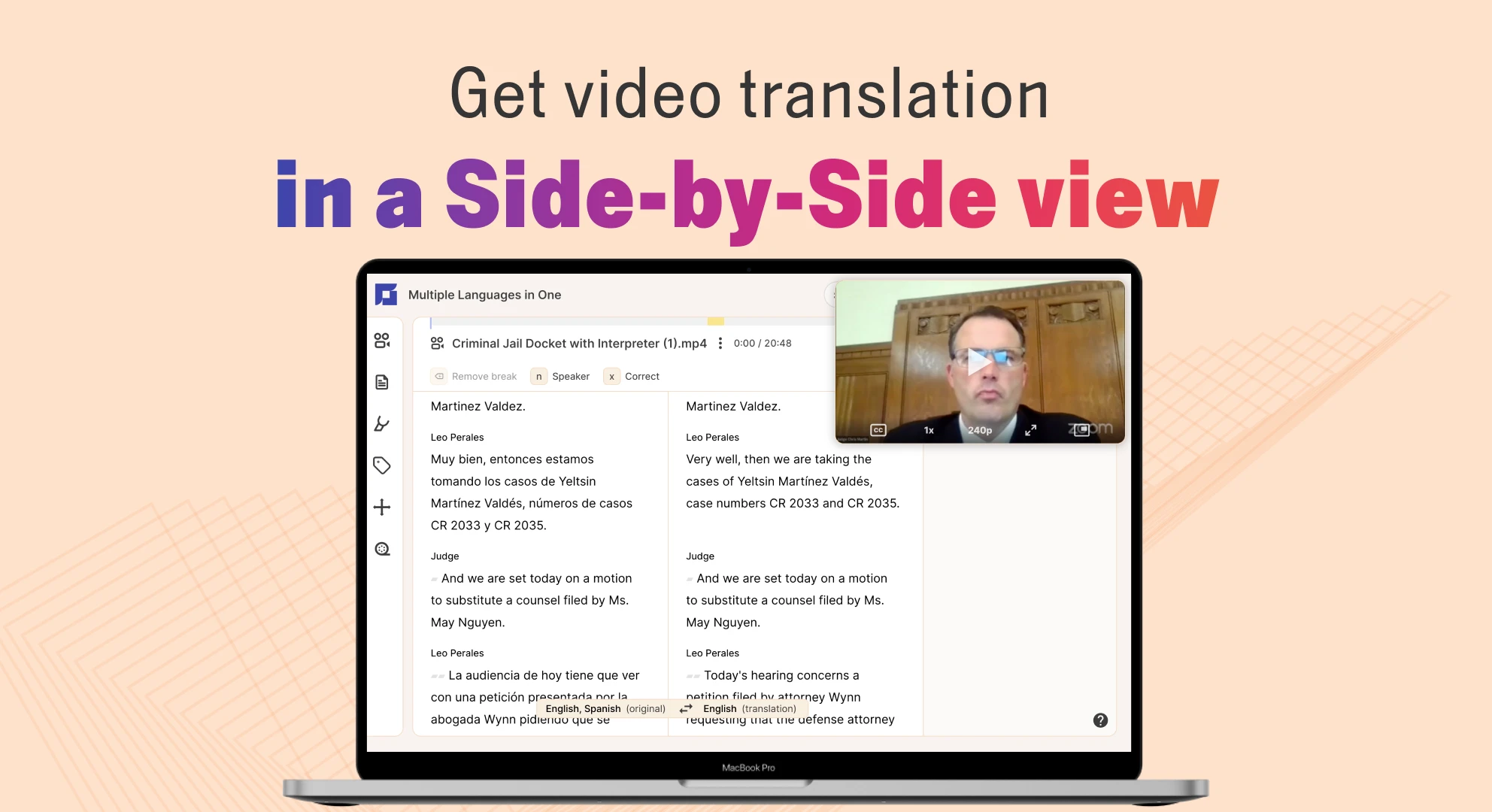
To make translation useful for discovery review, trial prep, and evidence management, Reduct's side-by-side translation shows the original transcript and the translation next to each other. They are synced to the same timestamp, so you can compare them without digging through hours of footage.
How the side-by-side view works
Start by uploading your video or audio file to Reduct and setting the source language. Reduct automatically generates transcripts once the upload's complete.
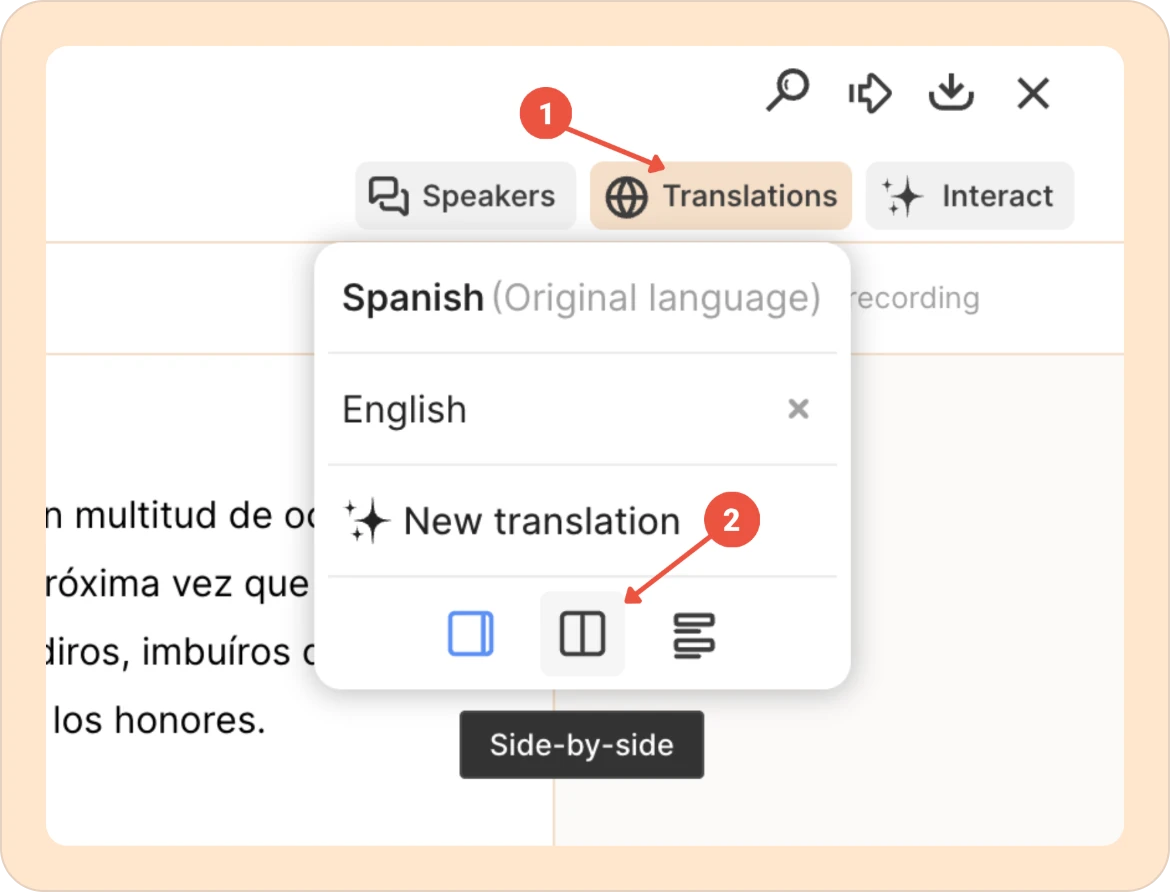
1. Translate into your target language. Go to the Translations menu and select English (or any of the 90+ languages Reduct supports) as the target language. Reduct automatically shows the translated transcript on your screen.
2. Choose the side-by-side view. When you select Side-by-side, you'll get the original language of the recording on the left and the translation on the right.
3. Read down both columns at once. As the two columns are aligned, you can scan the transcript without switching between two separate documents or tabs.
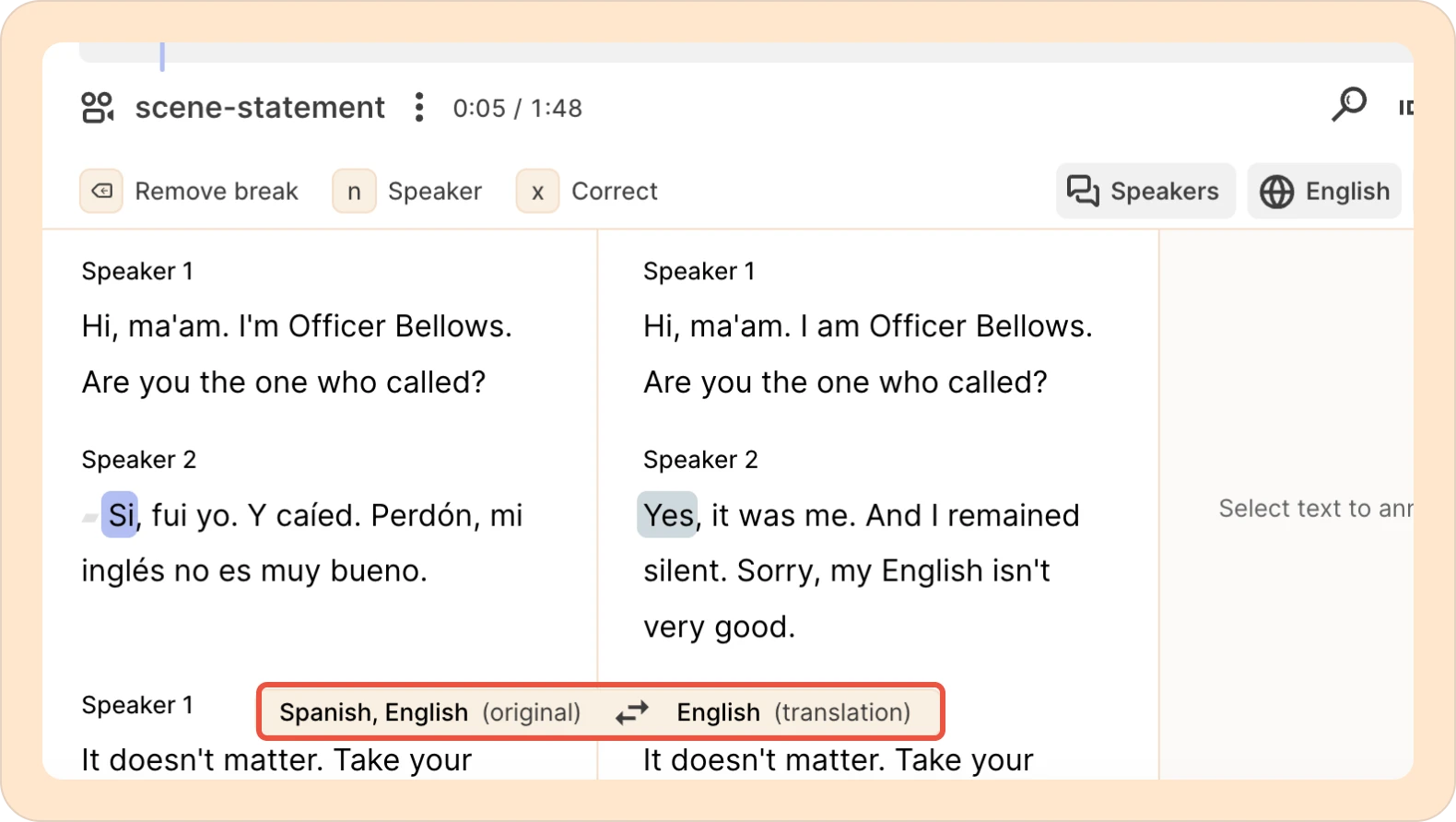
4. Click a word to jump to that moment in the recording. Every word in the translation is synced to the timestamp of the original audio. Click one word, and Reduct takes you straight to that point in the recording, no scrubbing required.
5. Correct either column directly. If the translation misses the meaning or the original transcript has an error, you can just fix it. The correction stays lined up with its matching row.
6. Export both columns as one document. Download a Word file with the original text and the translation side by side, plus timestamps. Here's how the downloaded file appears:
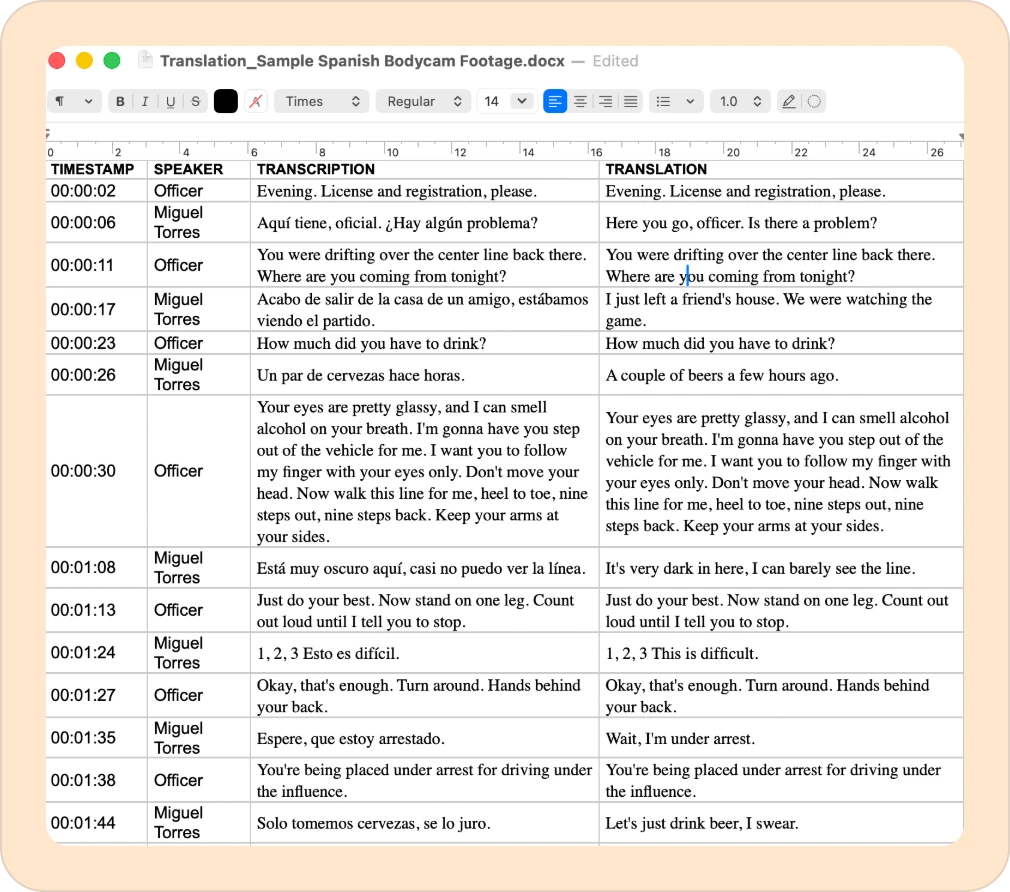
Everything you checked on screen stays intact in the file you share.
What you get with Reduct
Side-by-side view lets you compare the original transcript with the translation, so you're not relying on the translation alone. Here's what you get:
- See side-by-side alignment of original and translated text
- Click any word and jump to that moment in the recording
- Edit translations in the same view without losing alignment
- A single exportable document that keeps both languages together
TALK TO A PUBLIC DEFENDER
We're on your team

We believe the people building tools for defenders should understand what it actually takes to be one. So we have former public defenders helping us build the product. Have a question about whether Reduct fits your office? We’d love to talk to you.