How to Summarize Police Reports for Faster Discovery Review
August 2026
·
3 min read

It's 4:30 p.m. and tomorrow's arraignment packet includes a police report, three supplemental reports, a use-of-force review, and several scanned field notes that arrived in discovery an hour ago.
Before you can prepare motions, advise your client, or build a defense strategy, you need to understand what happened, who said what, and where the critical facts are buried.
Reading the report cover to cover is still part of the job, but figuring out where the case turns isn't always obvious on Page 1.
Structured summaries help you quickly see what each document contains, so you can zero in on the reports, events, and evidence worth a closer read.
Upload your police report and supporting documents into a project
A typical discovery set may include the police report itself, supplemental reports, use-of-force reviews, witness statements, evidence and property logs, dispatch or CAD records, and scanned materials like handwritten field notes, booking photos, or body cam stills.
Upload everything into a Reduct project to keep them together in one place.
Reduct supports most file formats. If you're working with a format that isn't listed here, reach out to support@reduct.video and we'll help you get it into your project.
Step 1: Start a summary from any document
If you're working through a single report, open the file and click Interact in the top right corner, then select Summarize the document.
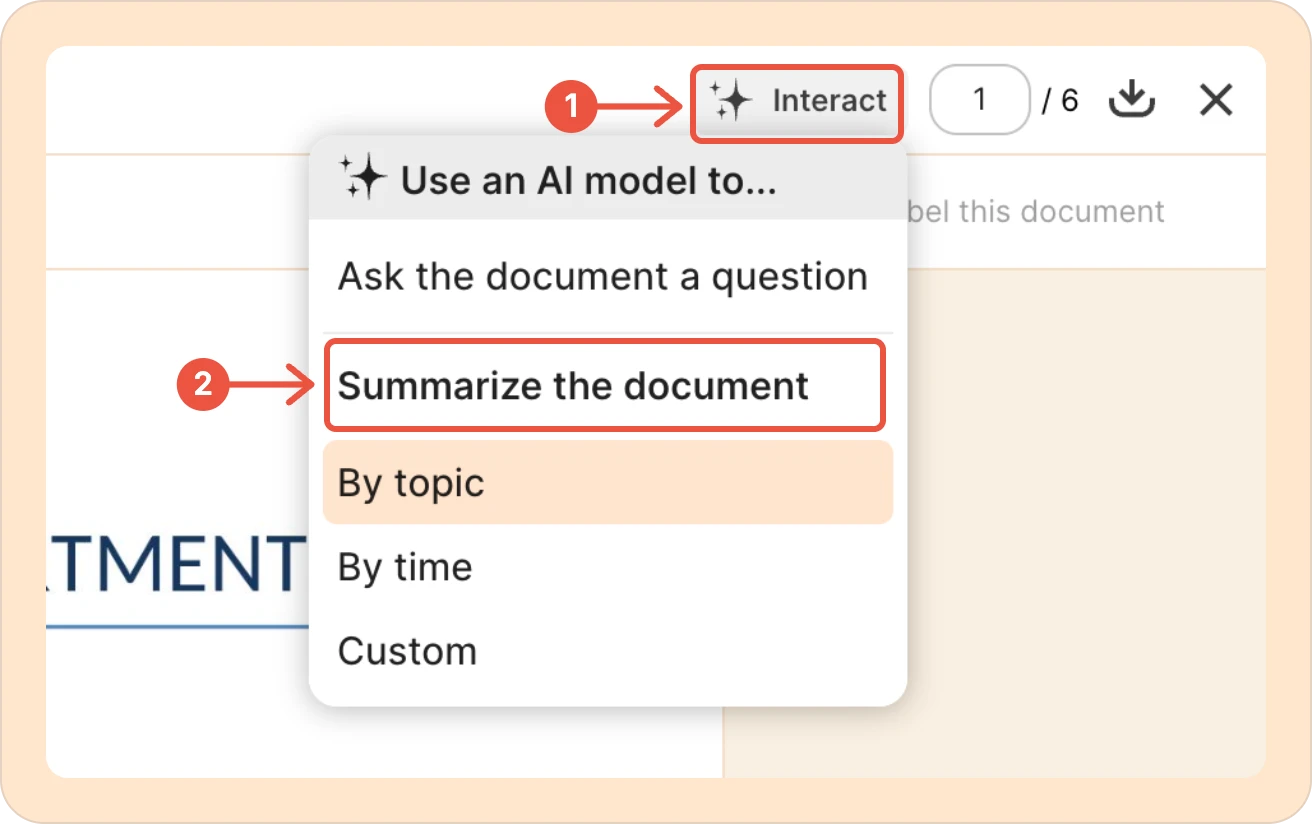
If you have a full discovery set to get through, select all the relevant files instead, click the three-dot menu, and choose Batch summarize.
Step 2: Choose the type of summary you need
Reduct offers three ways to generate summaries depending on what you are trying to understand.
By topic groups the report's content into themes, such as timelines, statements, and evidence references.
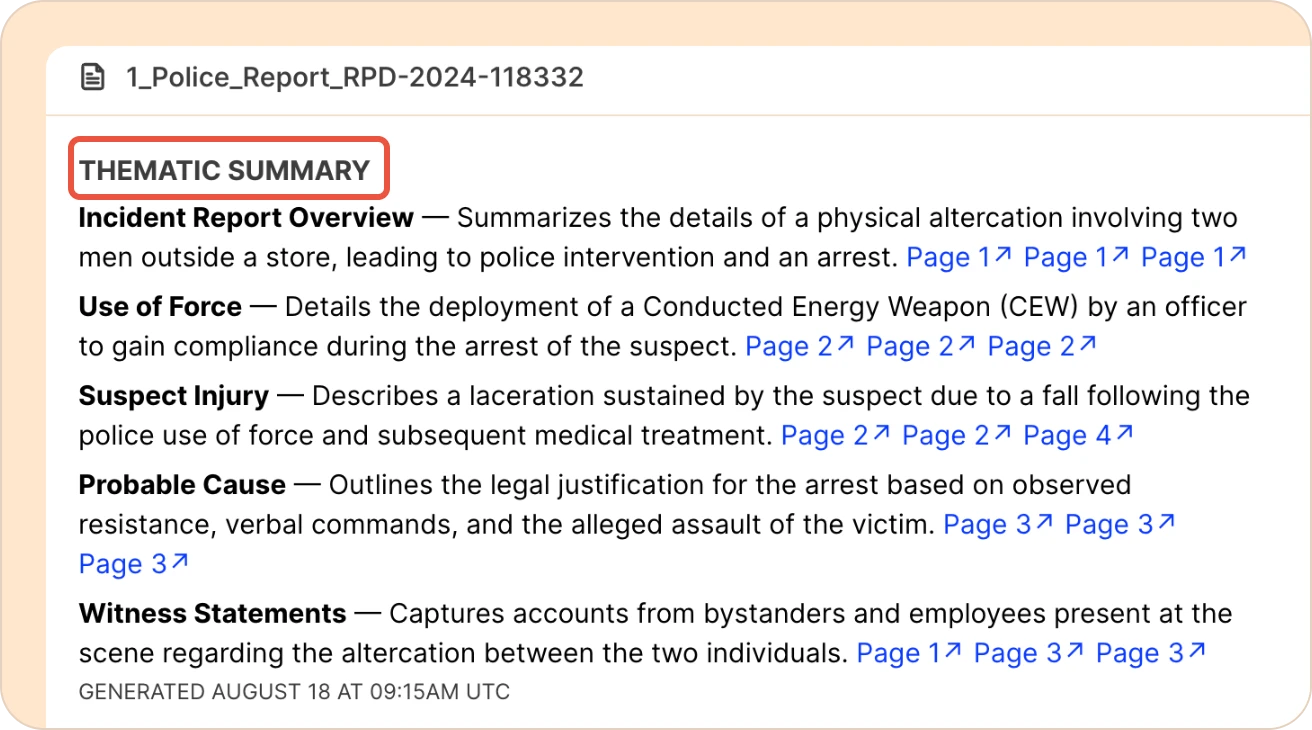
Use it when you want a quick, themed breakdown of what a document contains.
By time generates a chronological summary, walking through the report in the order events happened, following the sequence the officer or witnesses described.
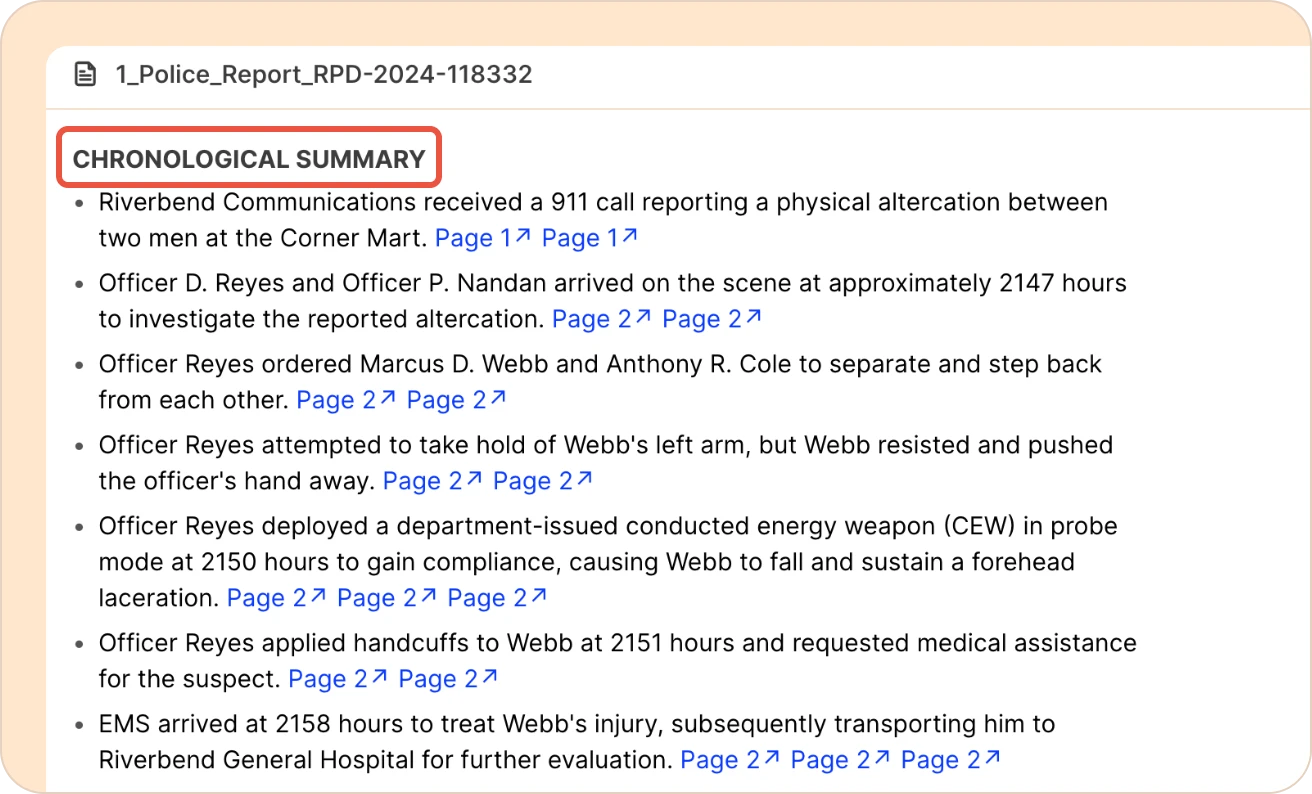
Use it when you need to reconstruct a timeline or check for inconsistencies in the sequence of events.
Custom lets you ask specific questions about the report and direct the summary toward the information that matters for your case.
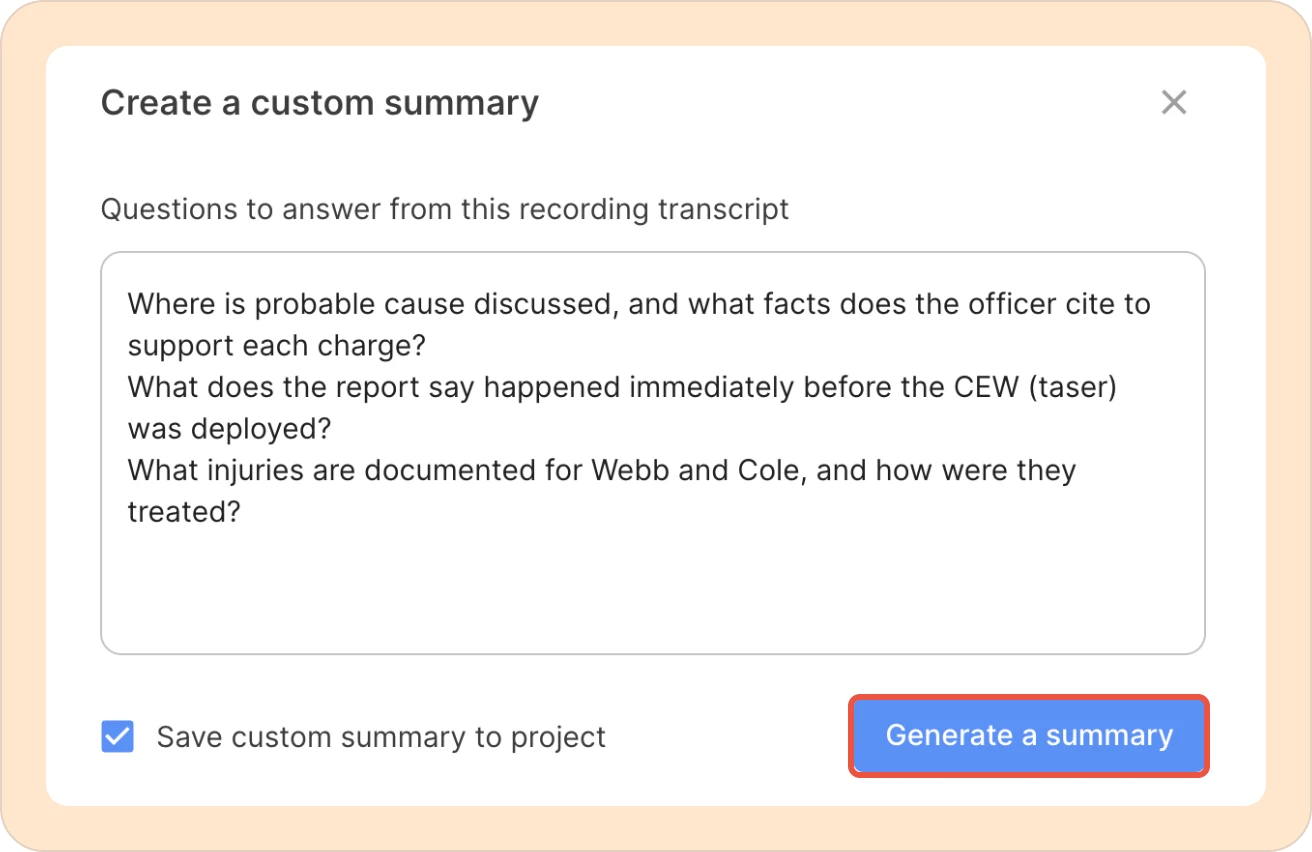
It is useful when you already know what you are looking for and want answers to specific questions, such as where probable cause is discussed or what happened right before a use-of-force incident.
Once you've generated a summary, by topic, by time, or custom, it becomes the map you use to work through the rest of the document.
Use summaries as a navigation tool
Think of summaries as a table of contents for your discovery. You start with an organized view of what's in the reports and where to focus instead of hunting for it across dozens or hundreds of pages.
Every summary links back to its source document, so you can jump straight from a summary point to the exact section it's referencing.
As you review the reports, you can also highlight important passages and apply labels to documents or sections that require additional attention. This makes it easier to return to key evidence, officer statements, and investigative details as your case strategy develops.
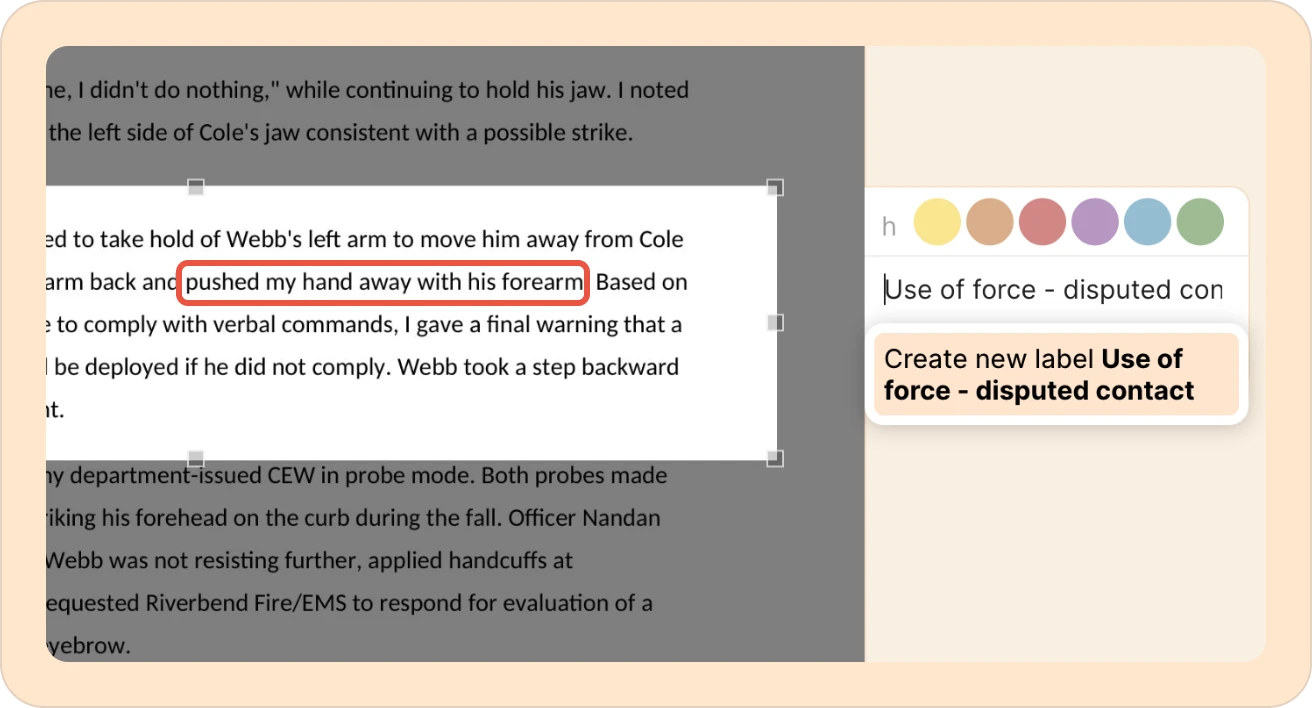

By the time you're done, you're starting the review from a timeline, a set of statements, and the two or three passages worth reading closely. Everything else is context you can come back to if you need it.
Try it on your next discovery set: run a summary before you read the first page, and start prep already knowing what's in the box.
TALK TO A PUBLIC DEFENDER
We're on your team

We believe the people building tools for defenders should understand what it actually takes to be one. So we have former public defenders helping us build the product. Have a question about whether Reduct fits your office? We’d love to talk to you.