The Best Way to Summarize a PDF
July 2026
·
3 min read
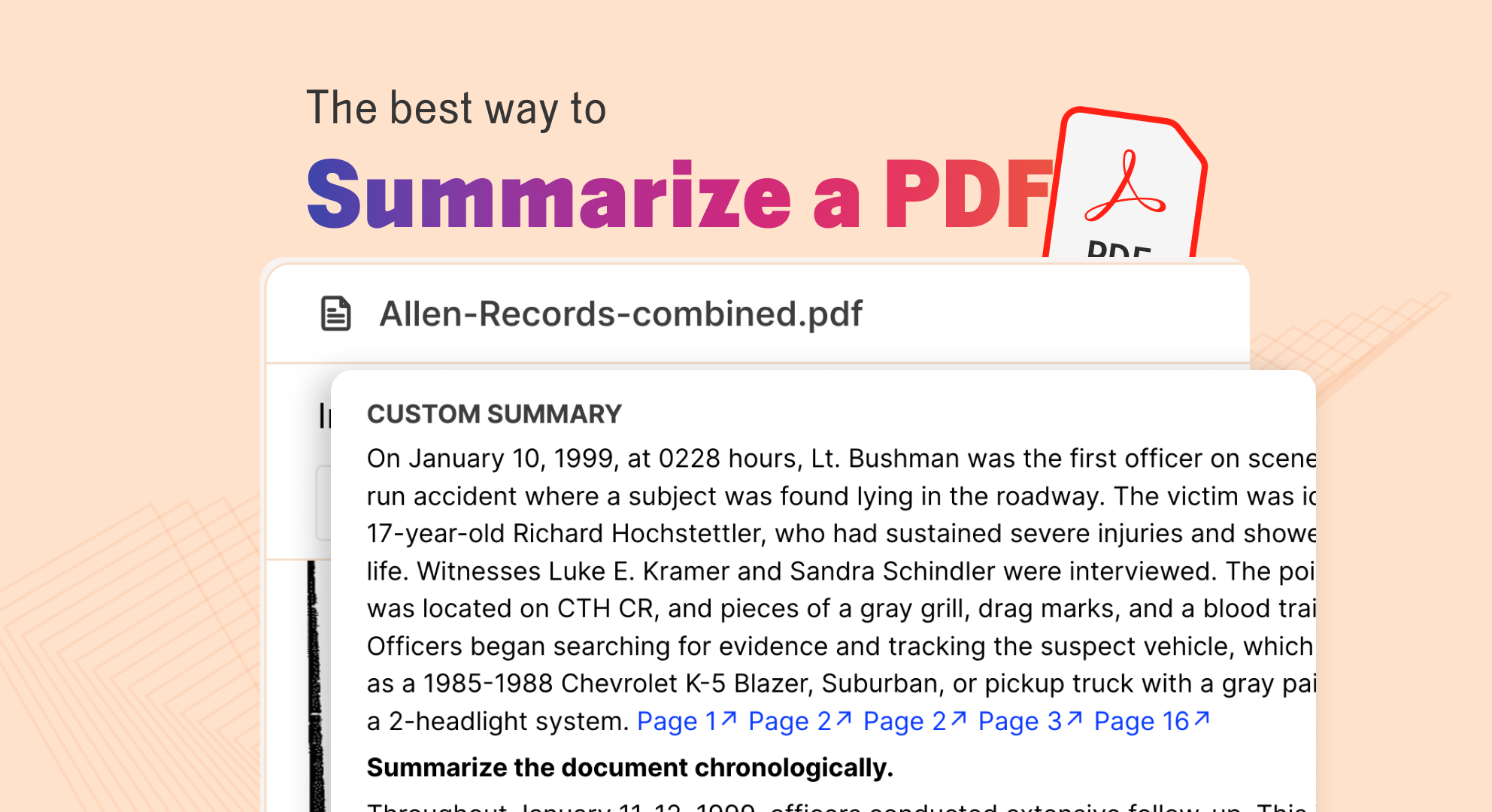
Most PDF summarization tools promise speed. You upload a long file and get a summary in seconds.
BUT speed always comes with a tradeoff. When you hand a 100-page report, a research paper, or a transcript to a black-box AI and ask for summaries, you lose your own judgment in the process.
A good PDF summarizer should put you in charge. You decide what matters and how to fact-check it. And the AI just helps you get to the right part faster.
In this article, I'll show you what separates a trustworthy PDF summarizer from a generic one, and why Reduct is built for people who spend their day reading reports, transcripts, research papers, contracts, or interview notes.

What makes a good PDF summary
A good summarizer has four big traits.
It asks for your input first. A generic summary rarely answers the question that's keeping you up at night. A good tool lets you shape the summary right from the start. You decide what matters before the AI writes a single word. And when you have a specific question, like "Where does the witness change their story?", it gives you an answer grounded in the document.
It never asks for blind trust. If a summary says a witness "raised three objections," you shouldn't have to take the AI's word for it. Every claim should point back to the exact place in the document, so you can verify it yourself.
It handles messy files. Real paperwork has scanned pages with coffee stains, handwritten notes in the margins, blurry photocopies, and embedded images. A good summarizer reads through the mess without asking you to clean anything up first.
It keeps your data safe. A good summarizer shouldn't leave you wondering whether your files are being used to train an AI model. When you're working with sensitive documents, privacy isn't a nice-to-have. Your data should stay yours.
What summary looks like in Reduct
1. Import any documents to Reduct
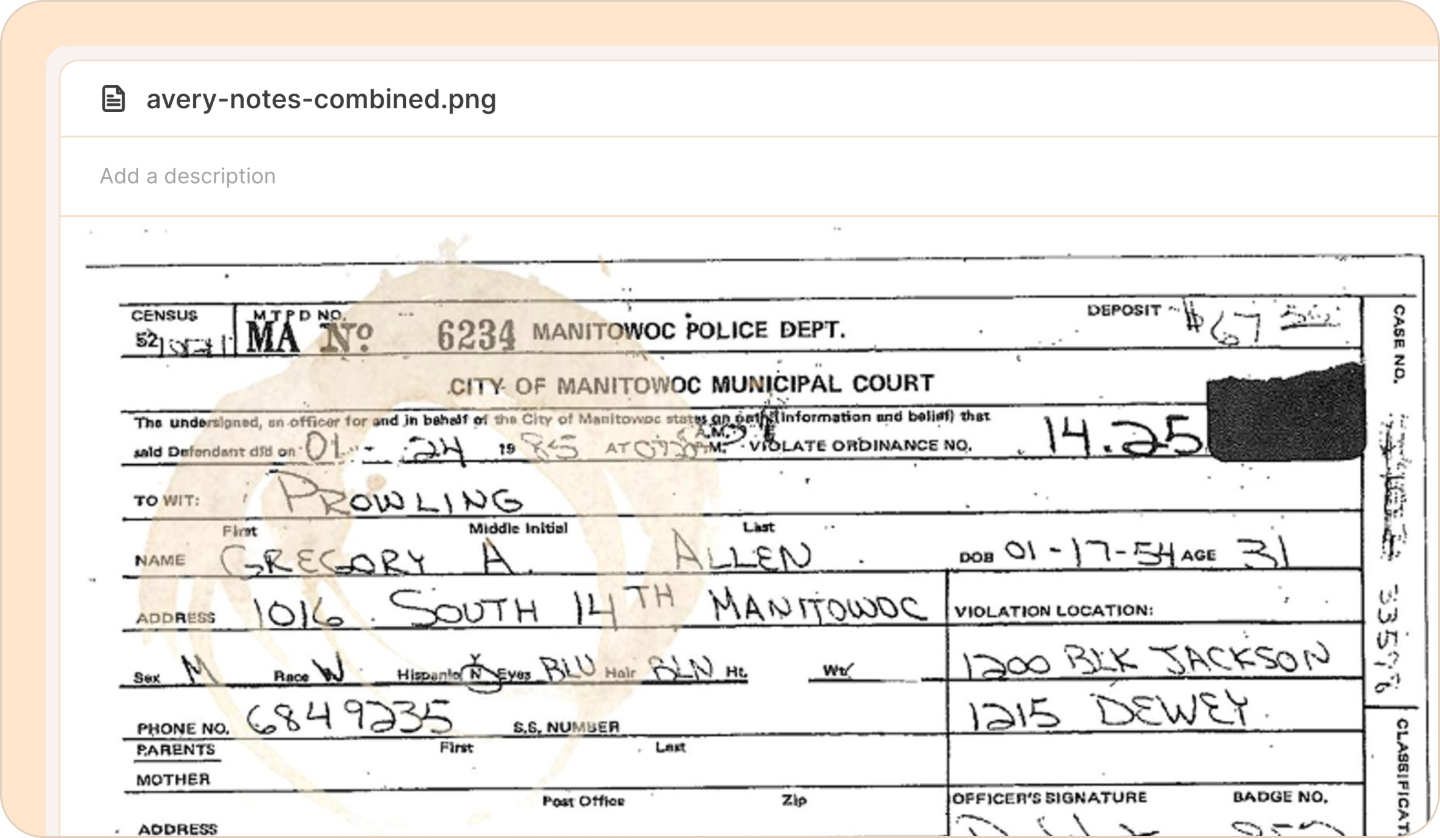
Reduct can read scanned pages, photographs of documents, handwritten notes, and clean digital PDFs. It also handles large files and a range of file formats, so you're not stuck converting things before you start.
2. Start with your question
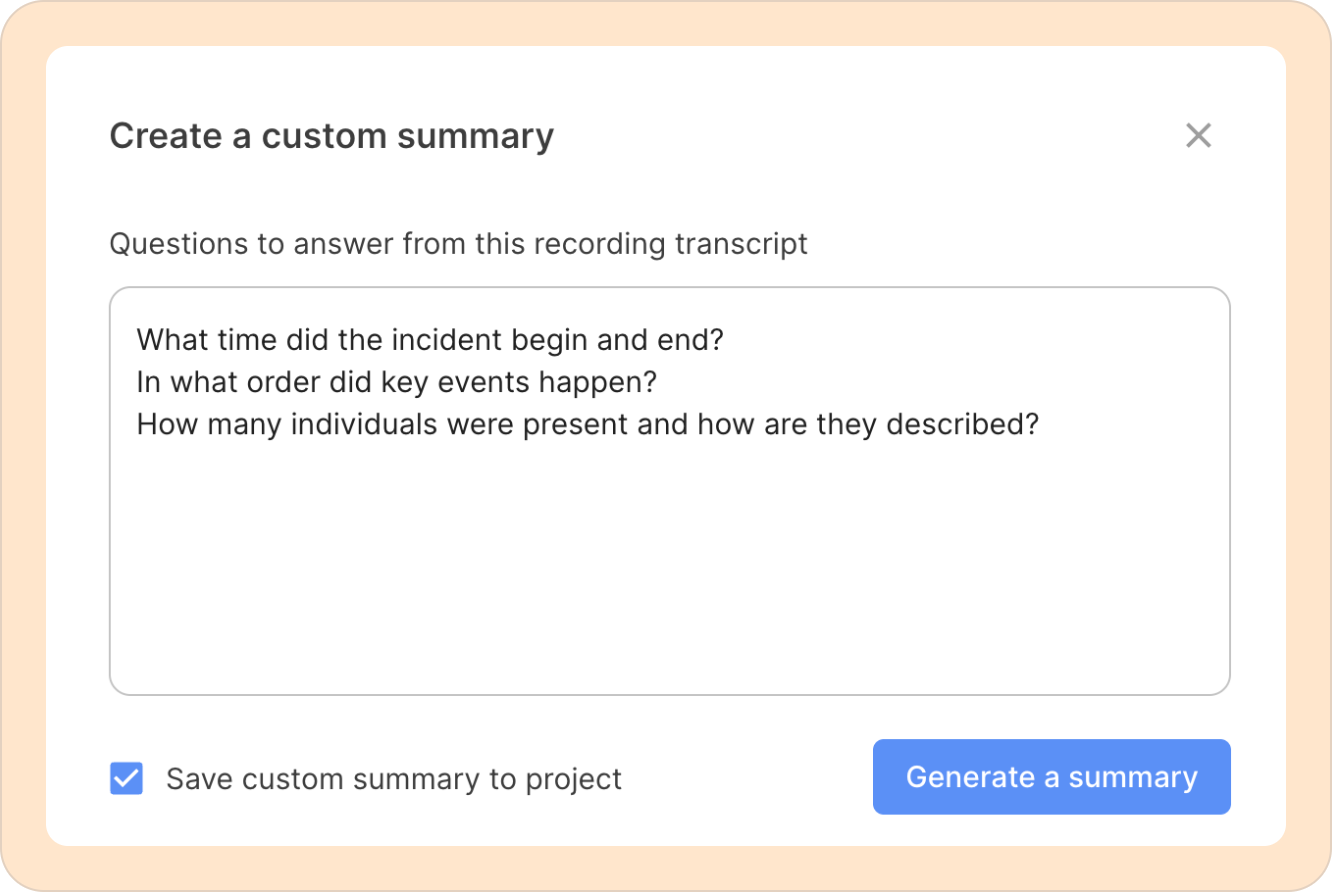
Reduct builds the summary around what you need: by topic, by time, or a custom summary that answers focused questions like:
- List every objection raised in this deposition.
- Explain the financial risks in this report.
- Give me a medical history in chronological order, in plain, easy-to-understand language.
You set the direction before the AI writes anything.
3. Go back to the source and verify
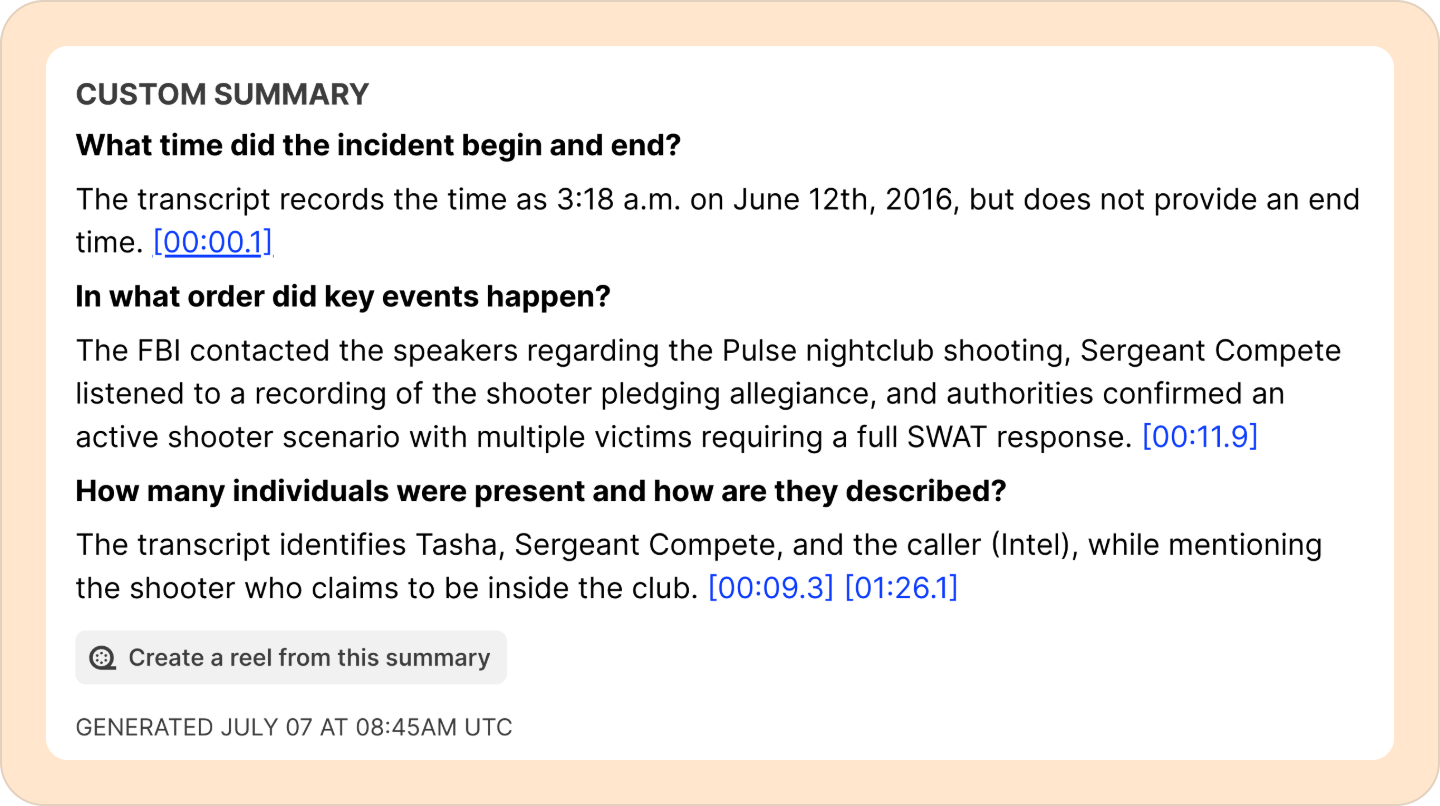
In Reduct, every answer links back to its source. If something catches your eye, click on the page number to jump straight to that section of the document and read it in context.
This helps you find what you need faster. And you still verify and decide how you want to use the summary.
4. Keep the whole document review process in one place
Your workflow rarely ends with one summary. After that, you usually need to:
- Search across several files at once
- Compare two documents side by side
- Highlight and save key passages
- Share excerpts with a teammate
Reduct keeps the entire review process in one place. You don't have to bounce between a summarizer, a PDF viewer, and your notes app.
If you only summarize a PDF once a month, a free tool like NotebookLM works just fine. But if you review documents every week, Reduct is the better choice.
Especially when you're working with long reports, contracts, research papers, or transcripts, you need to know exactly where each summary came from. Try Reduct and bring your documents and videos into one searchable repository.